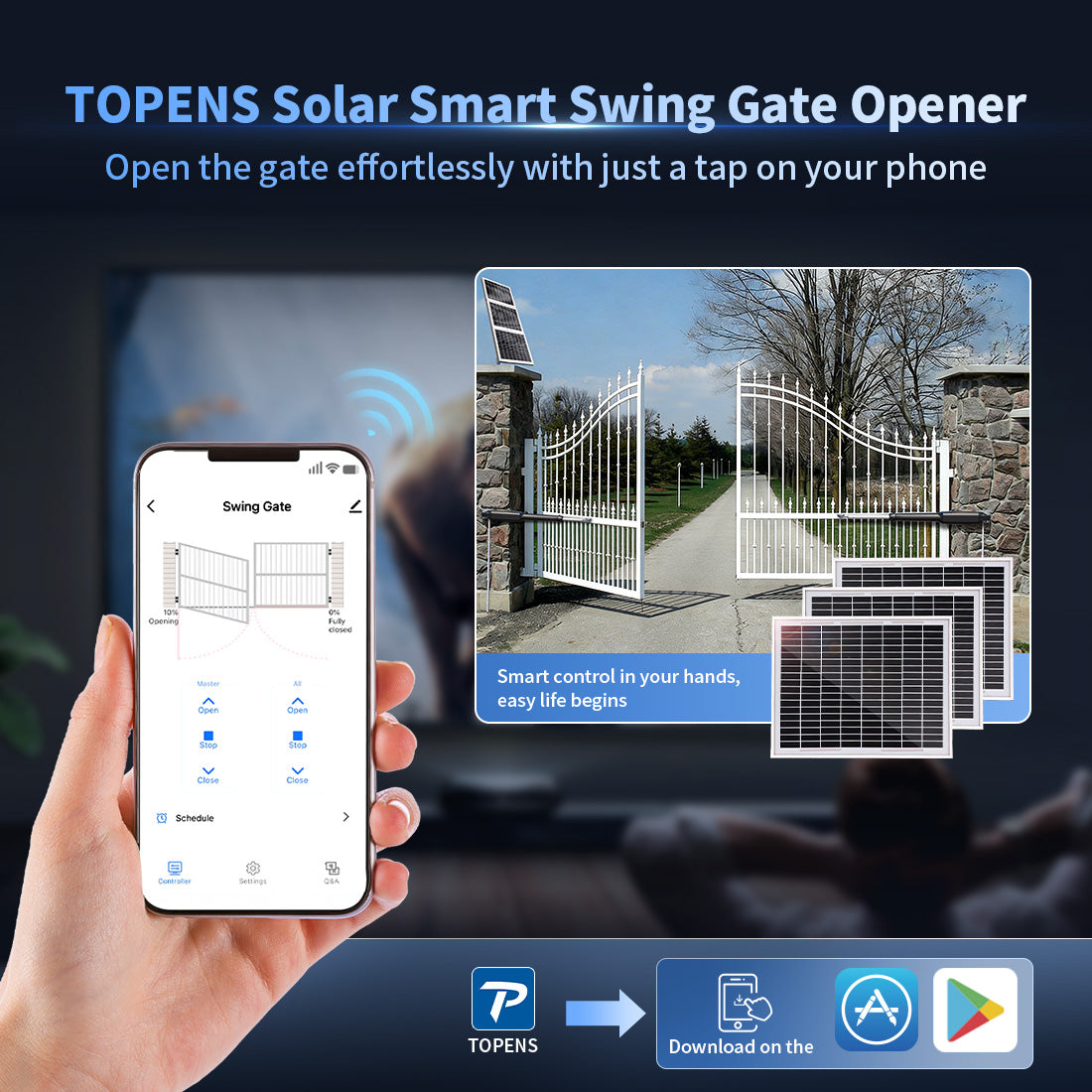
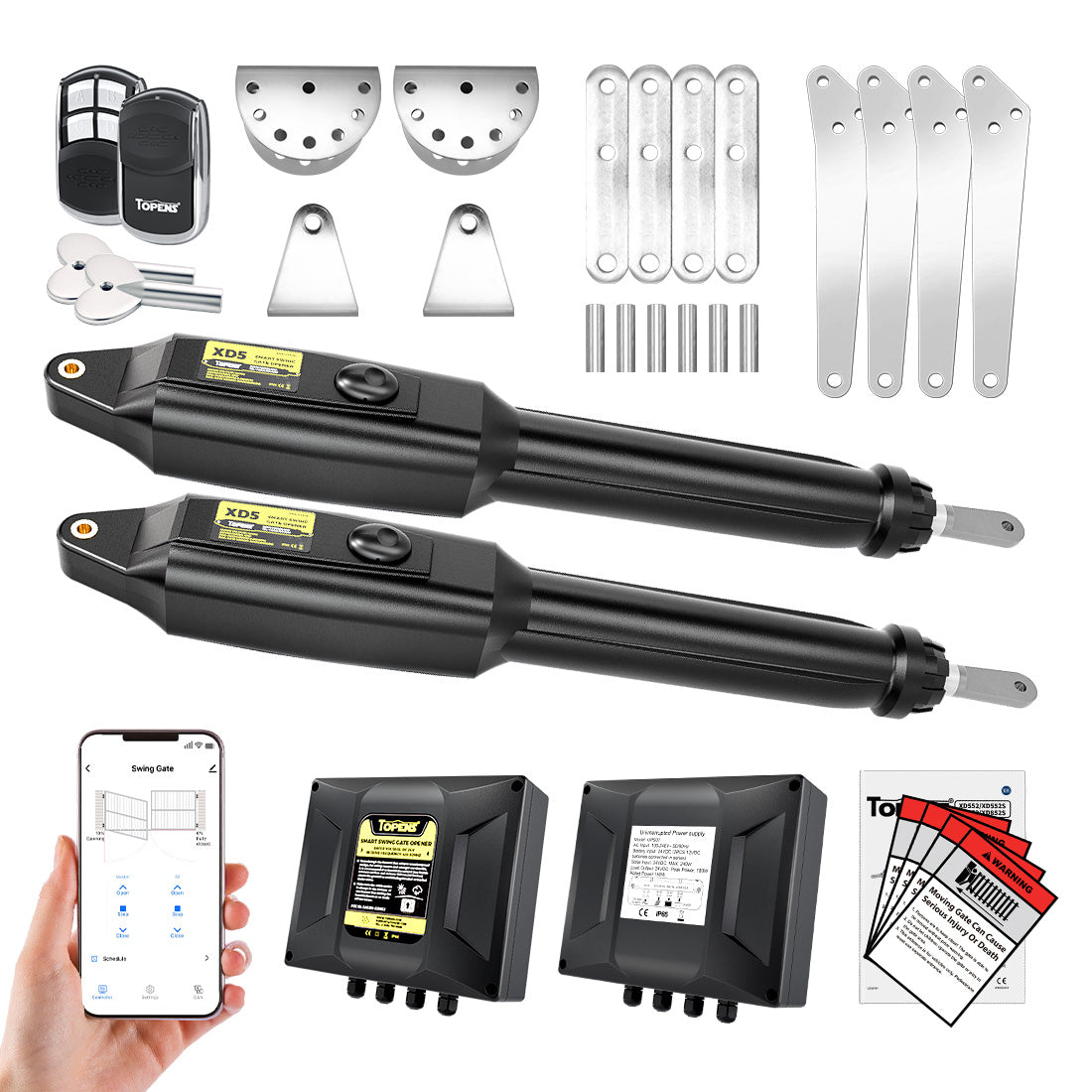
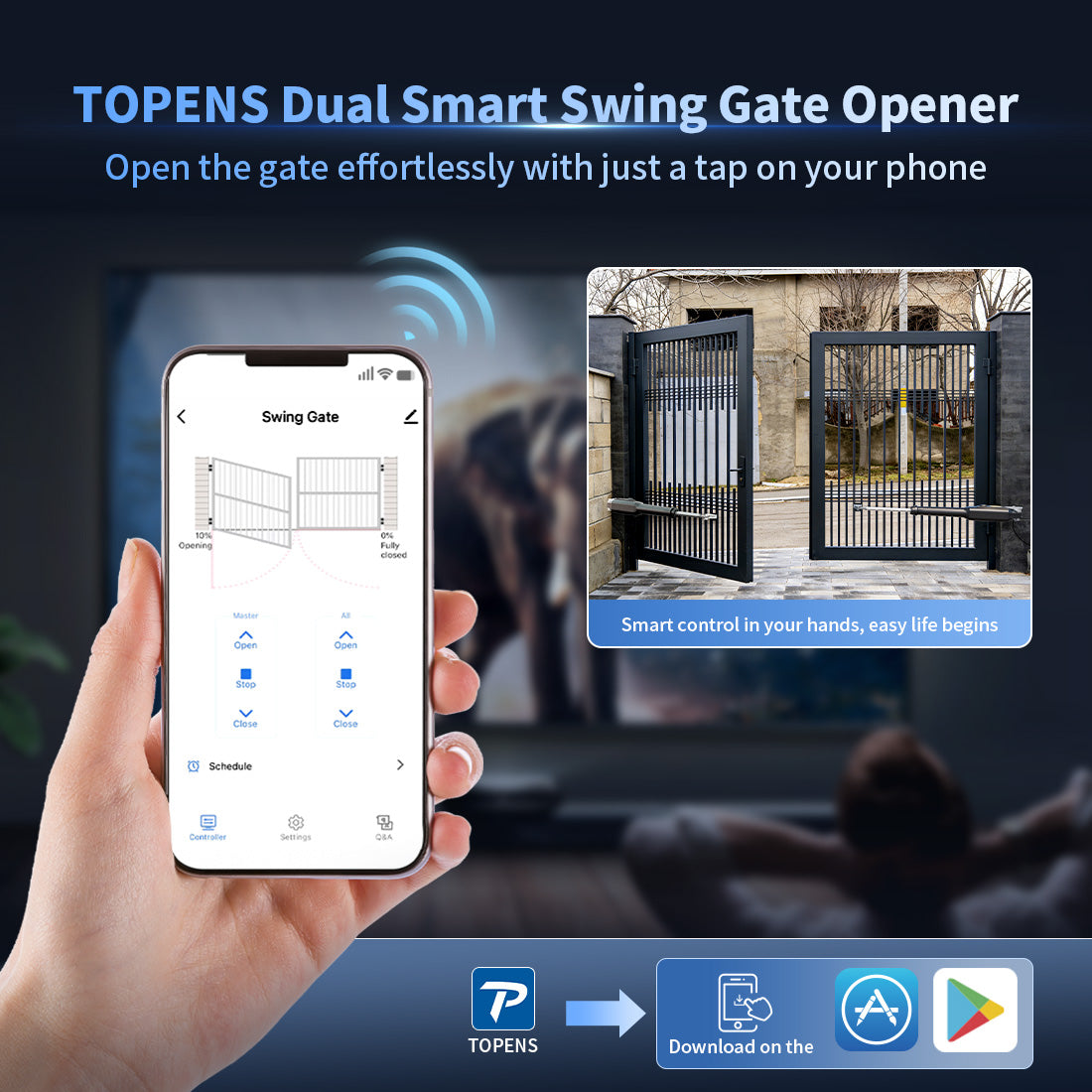
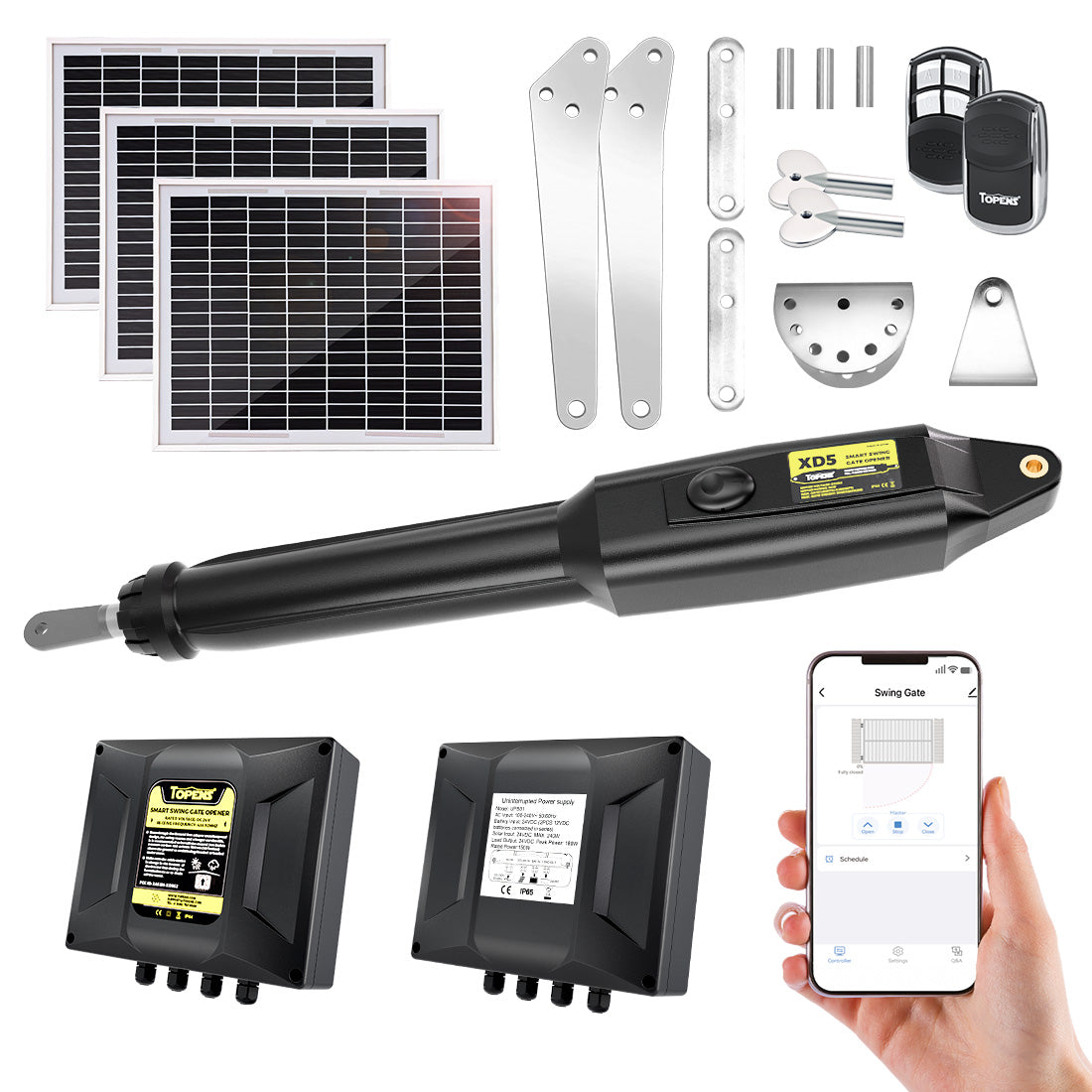
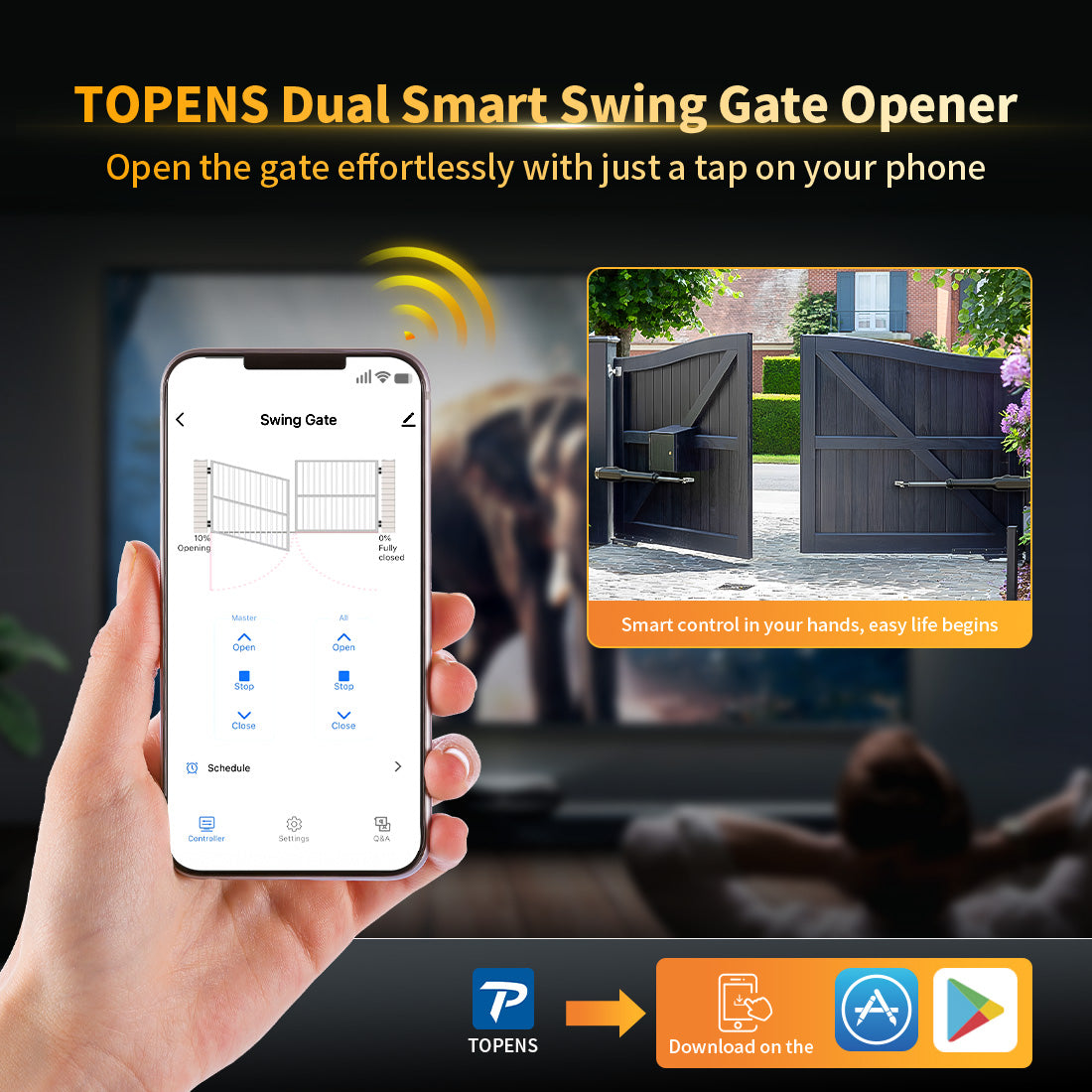
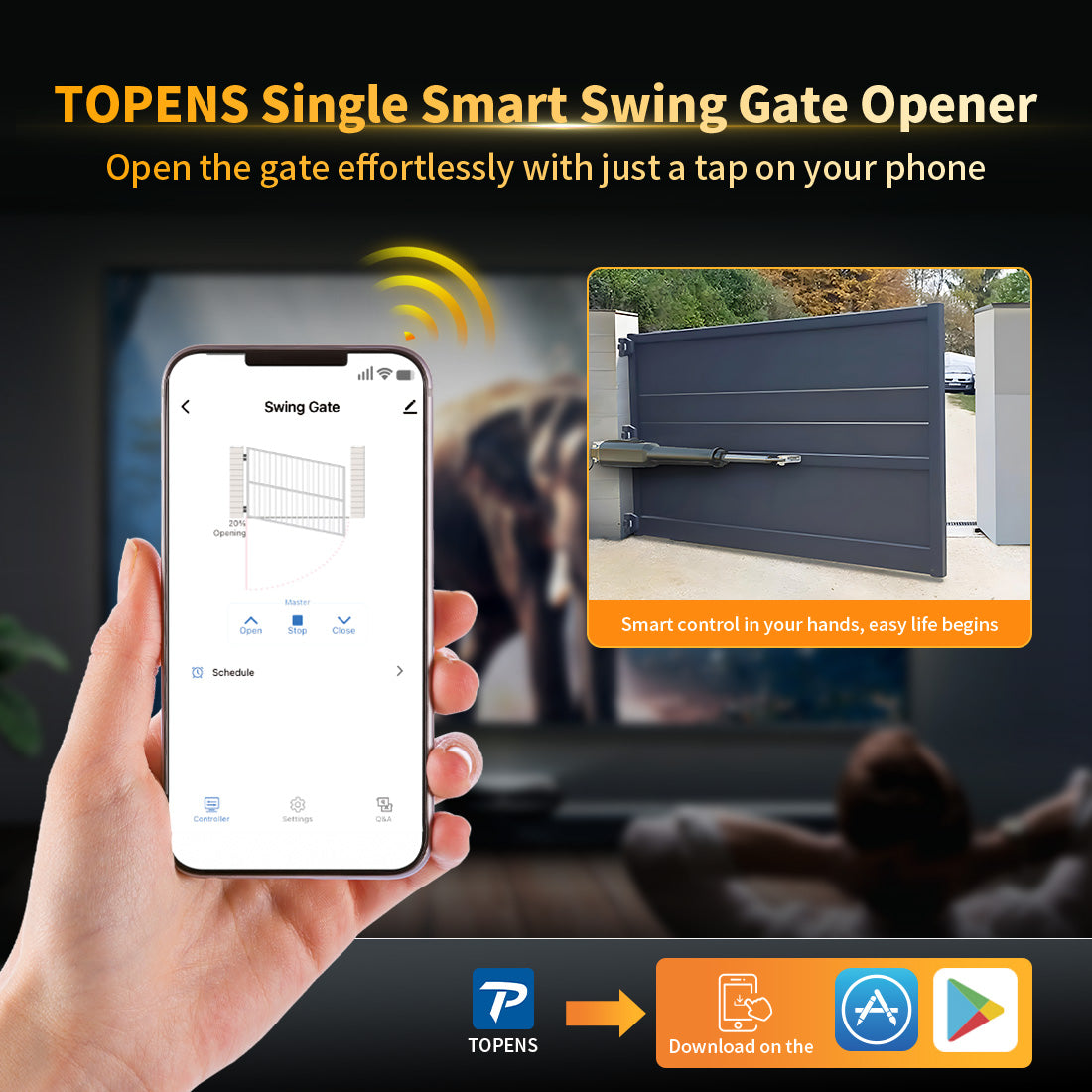
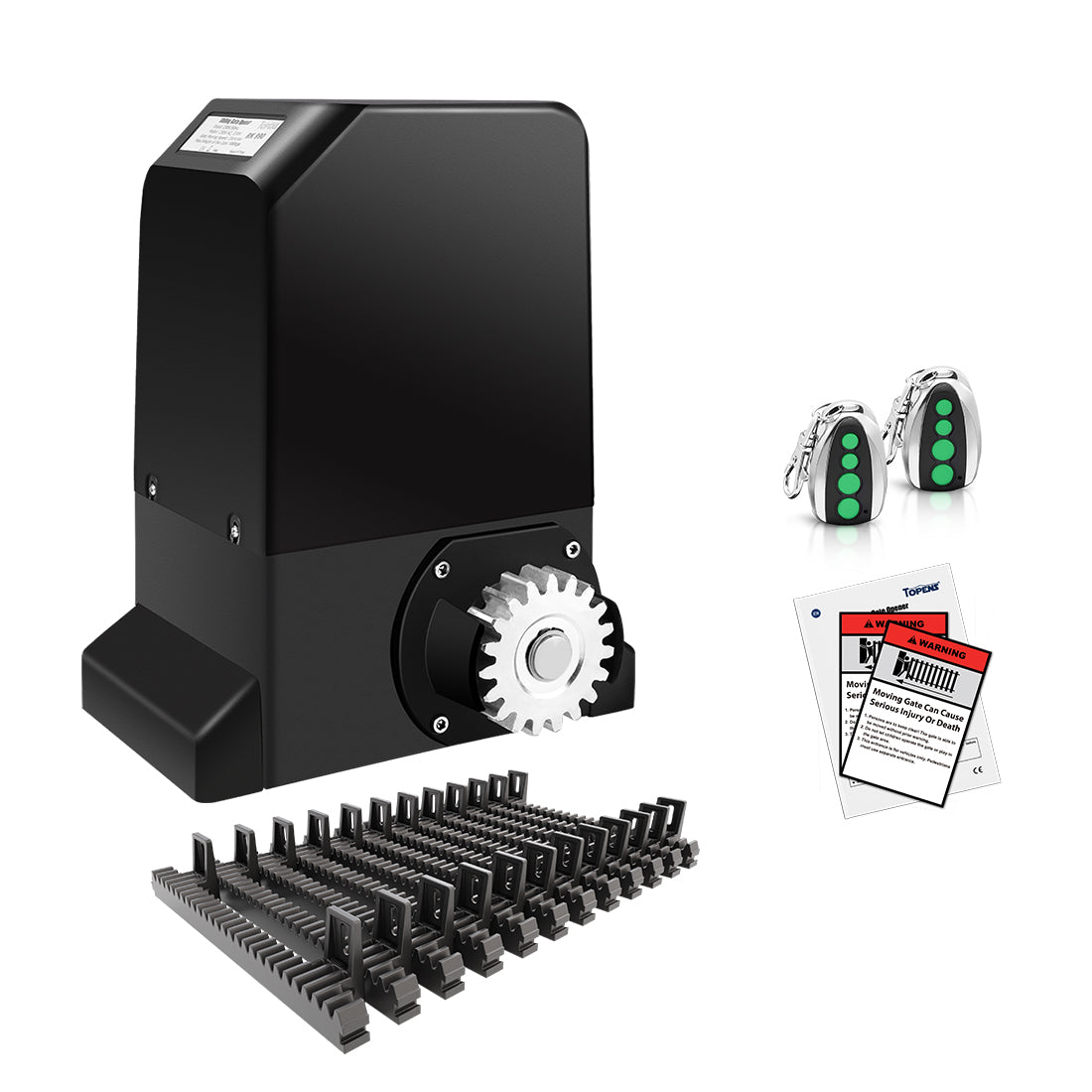
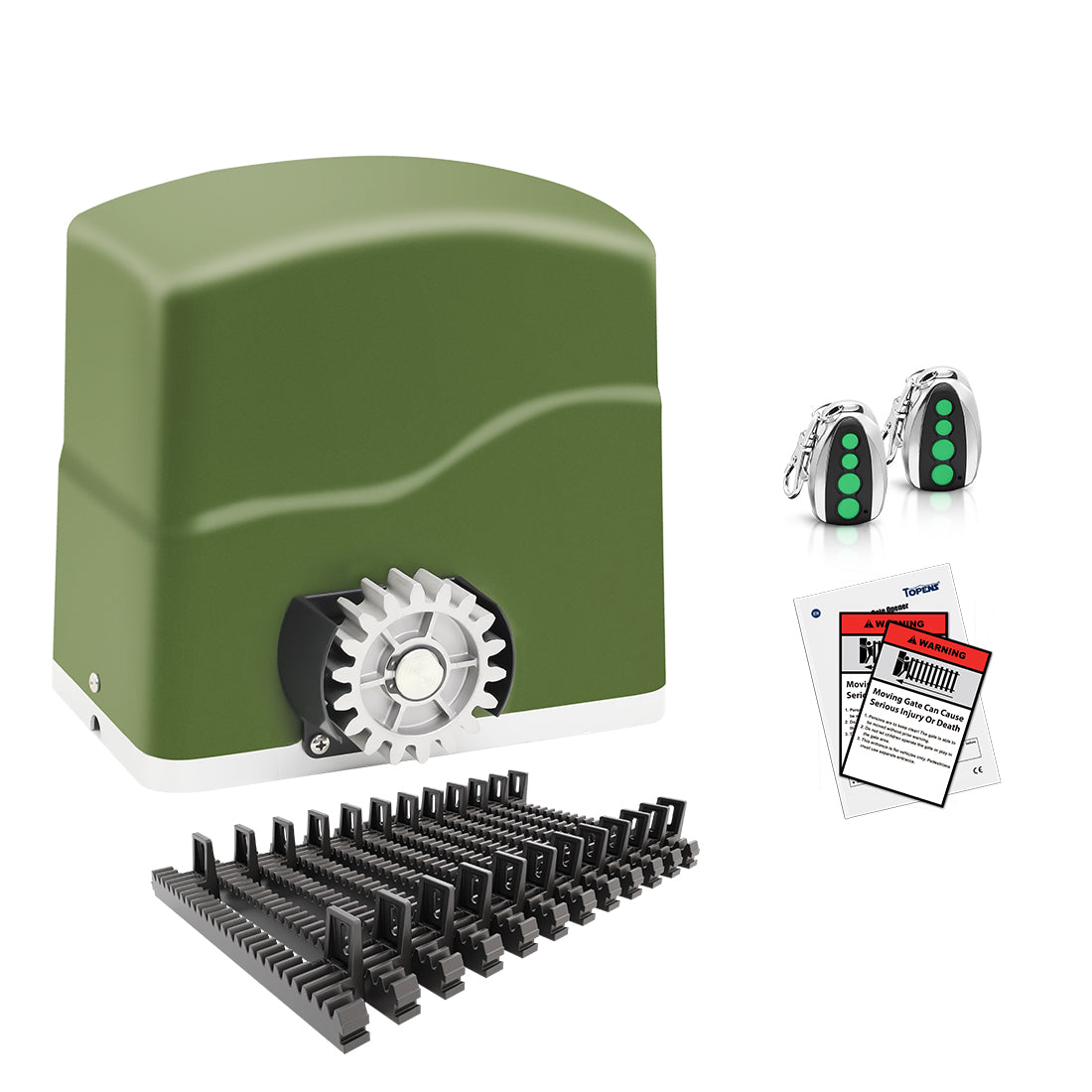
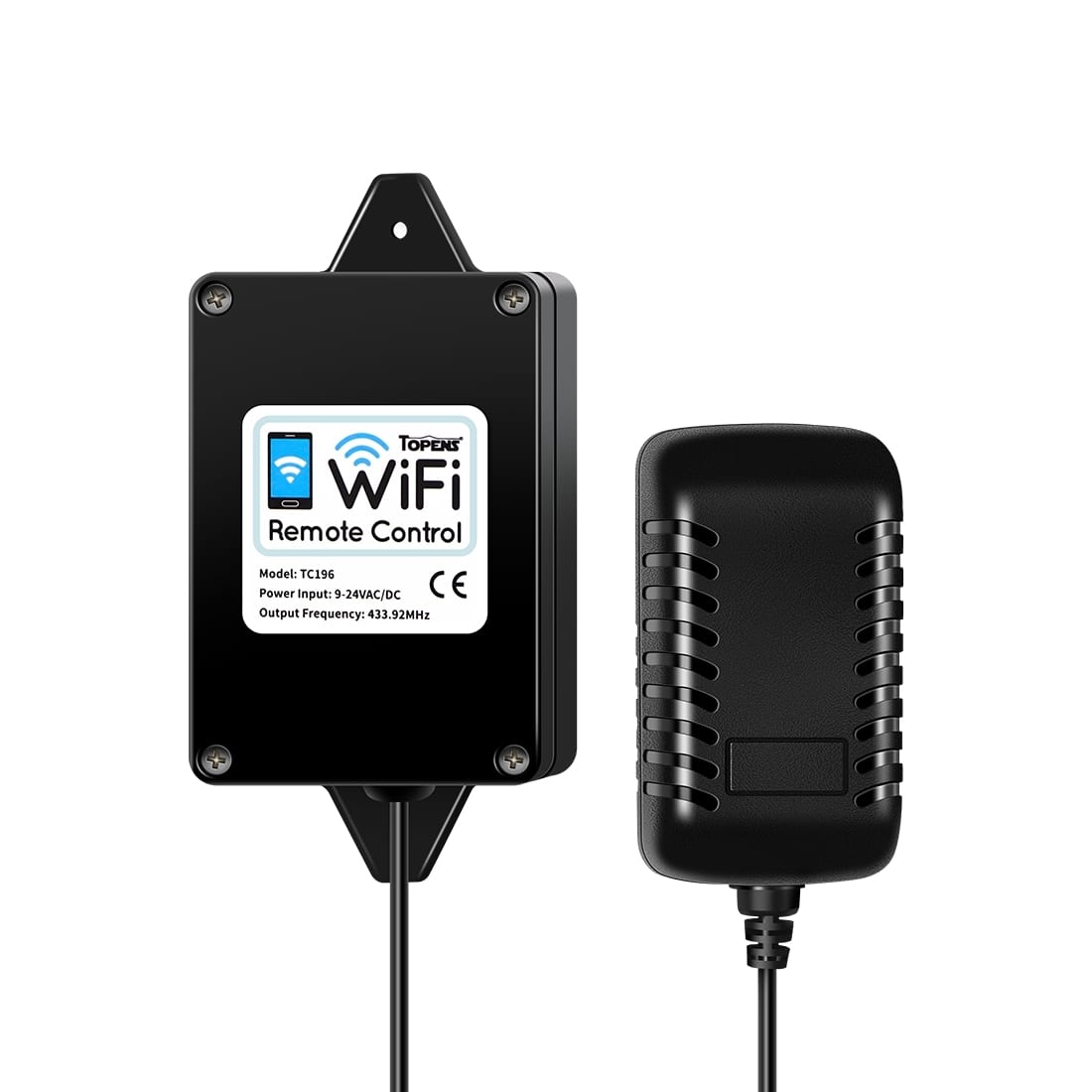
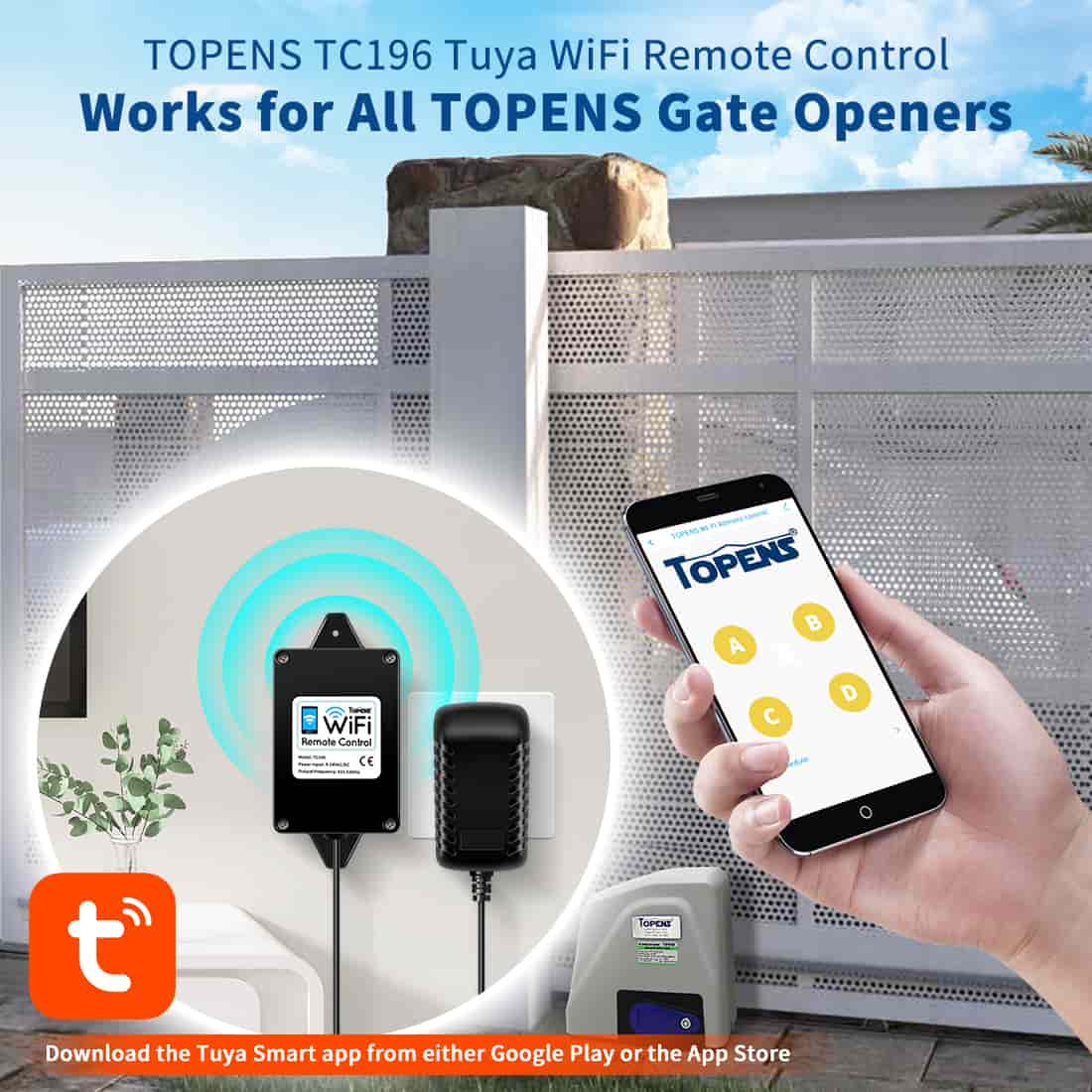
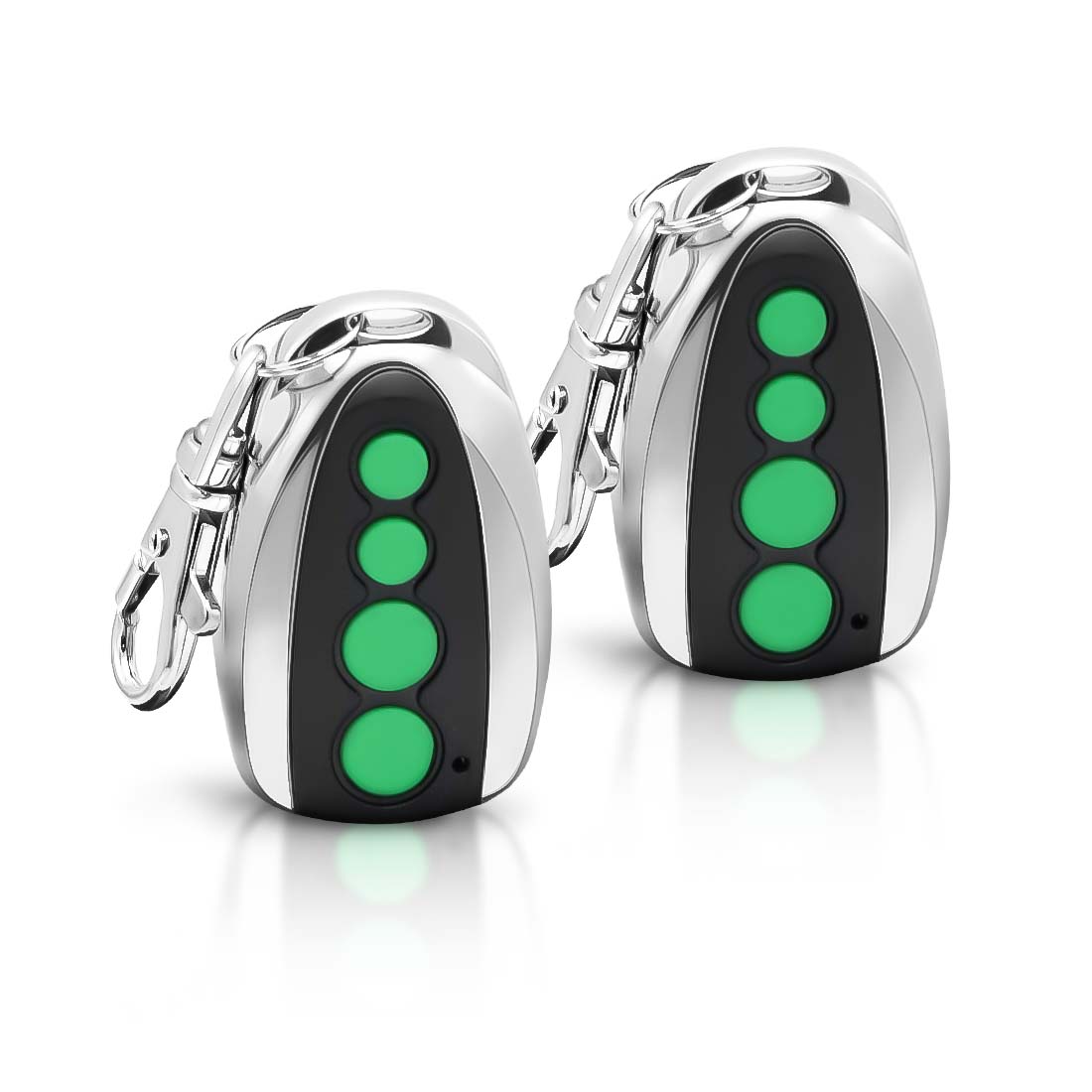
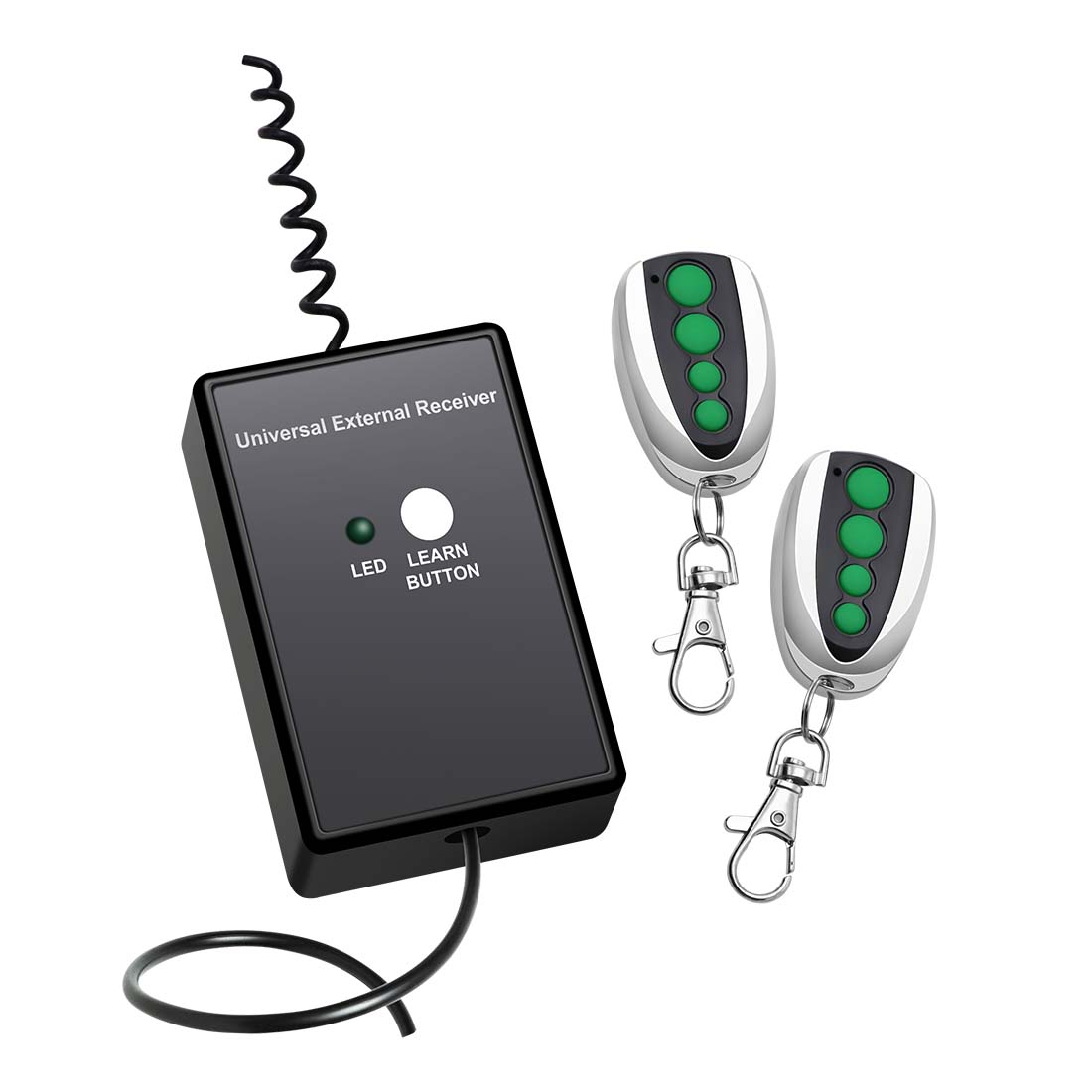
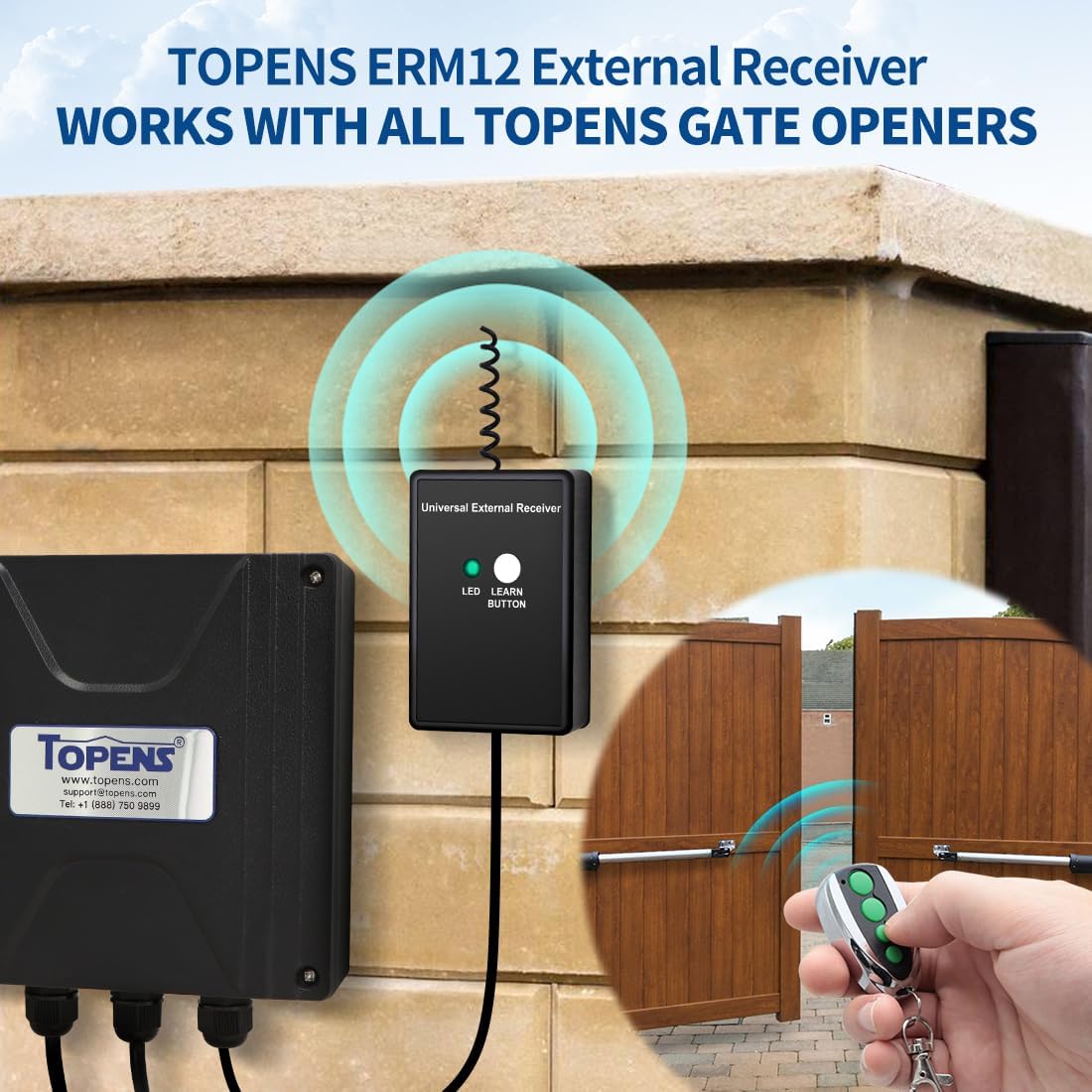
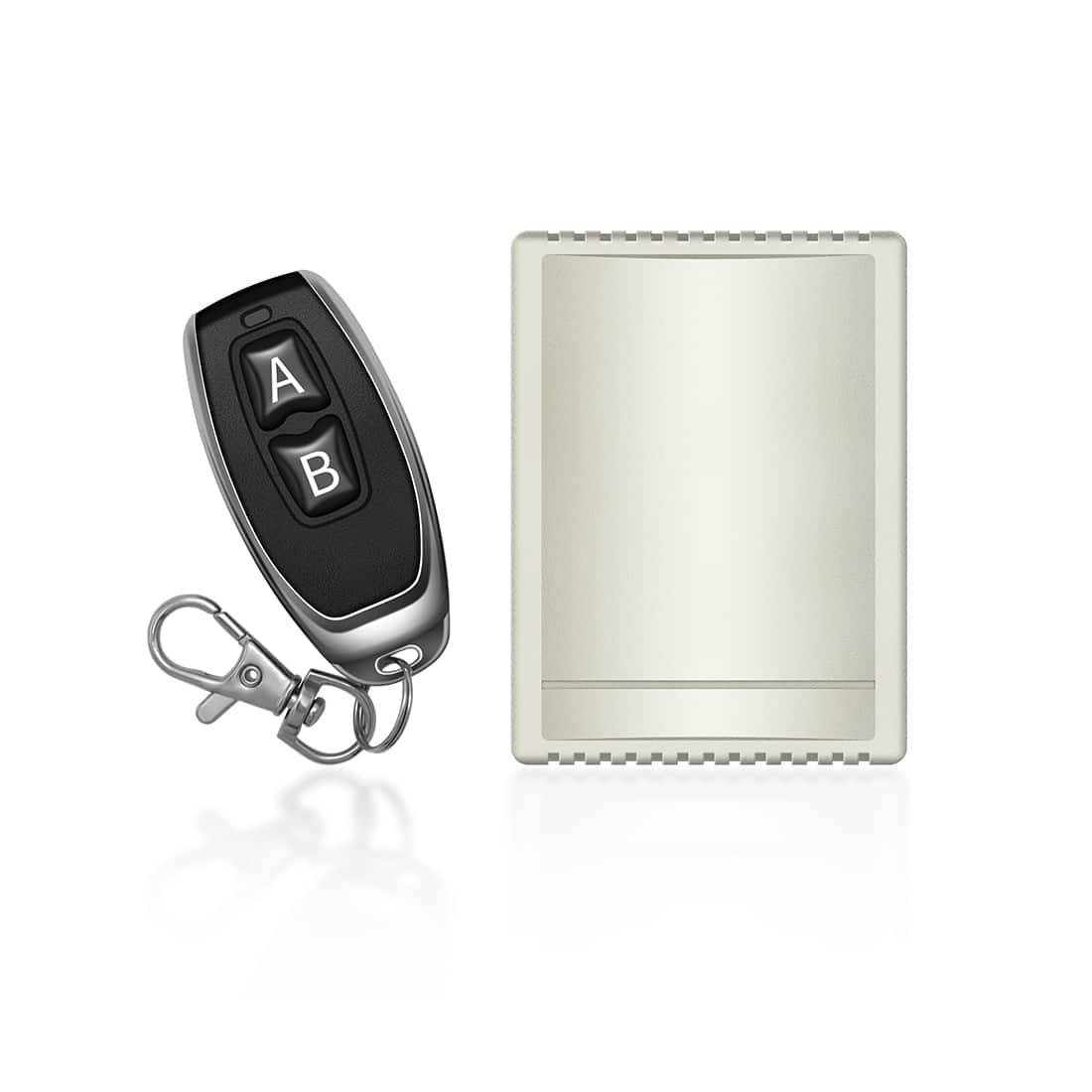
The TOPENS TC196 Tuya WiFi Remote Control provides secure and convenient remote access to your TOPENS gate opener system. When connected to a 2.4GHz WiFi network and paired with the Tuya Smart app, the TC196 allows you to operate your gate from anywhere using your smartphone.
For reliable performance, ensure the following:
- A stable 2.4GHz WiFi network
- A proper installation location
- Correct programming procedures
- Minimal signal interference
This guide outlines common issues that may occur during installation or daily use, along with clear step-by-step solutions.
1. TC196 Cannot Be Found in the Tuya Smart App
If the device cannot be added to the app:
Step 1: Reset the TC196
- Press and hold the RESET button on the TC196 until the blue indicator light flashes.
- Try adding the device again.

Step 2: Verify the WiFi Network
- The TC196 supports 2.4GHz WiFi only (5GHz is not supported).
- If your router broadcasts both 2.4GHz and 5GHz, ensure that the TC196 connects to the 2.4GHz network.
- Install the TC196 where the WiFi signal is strong and stable (preferably close to the router).
- Recommended distances:
- Within 15 meters (50 feet) of the router
- Within 230 meters (750 feet) of the gate opener control board
Weak or unstable WiFi is the most common reason the device cannot be detected.

Step 3: Check Smartphone Settings
- Make sure your phone is connected to the same 2.4GHz WiFi network.
- If using a WiFi extender, confirm both the phone and TC196 are connected to the same extender network.
- Enable Bluetooth on your phone and grant Bluetooth permission to the Tuya Smart app.
Bluetooth is required for paring.
Step 4: Confirm the Correct Setup Procedure
- Log in to the Tuya Smart app using your registered email account.
- Follow the setup steps exactly as described in the user manual or official setup video.
An incorrect setup sequence may prevent the app from detecting the device.
Step 5: Restart All Related Devices
If paring still fails:
- Power cycle the TC196
- Restart the WiFi router
- Close and reopen the Tuya Smart app
- Reinstall the app if necessary
Step 6: Test with Another Smartphone
- Install the Tuya Smart app on another smartphone and try setup again to rule out compatibility or permission issues.
2. TC196 Cannot Be Programmed to the Gate Opener
If the TC196 has been added to the app but cannot be programmed to the gate opener:
Step 1: Reconfirm Network Stability
- Ensure you are using 2.4GHz WiFi.
- Verify that the WiFi signal at the installation location is strong and stable.
- Avoid installing the TC196:
- Inside metal enclosures
- Near heavy electrical equipment
- In areas with strong electromagnetic interference
Step 2: Carefully Repeat the Programming Procedure
- Follow the programming instructions exactly as described below. For more details, refer to the user manual or the help article “How to Set TOPENS TC196 WiFi Remote Control for Gate Control Anytime & Anywhere”.
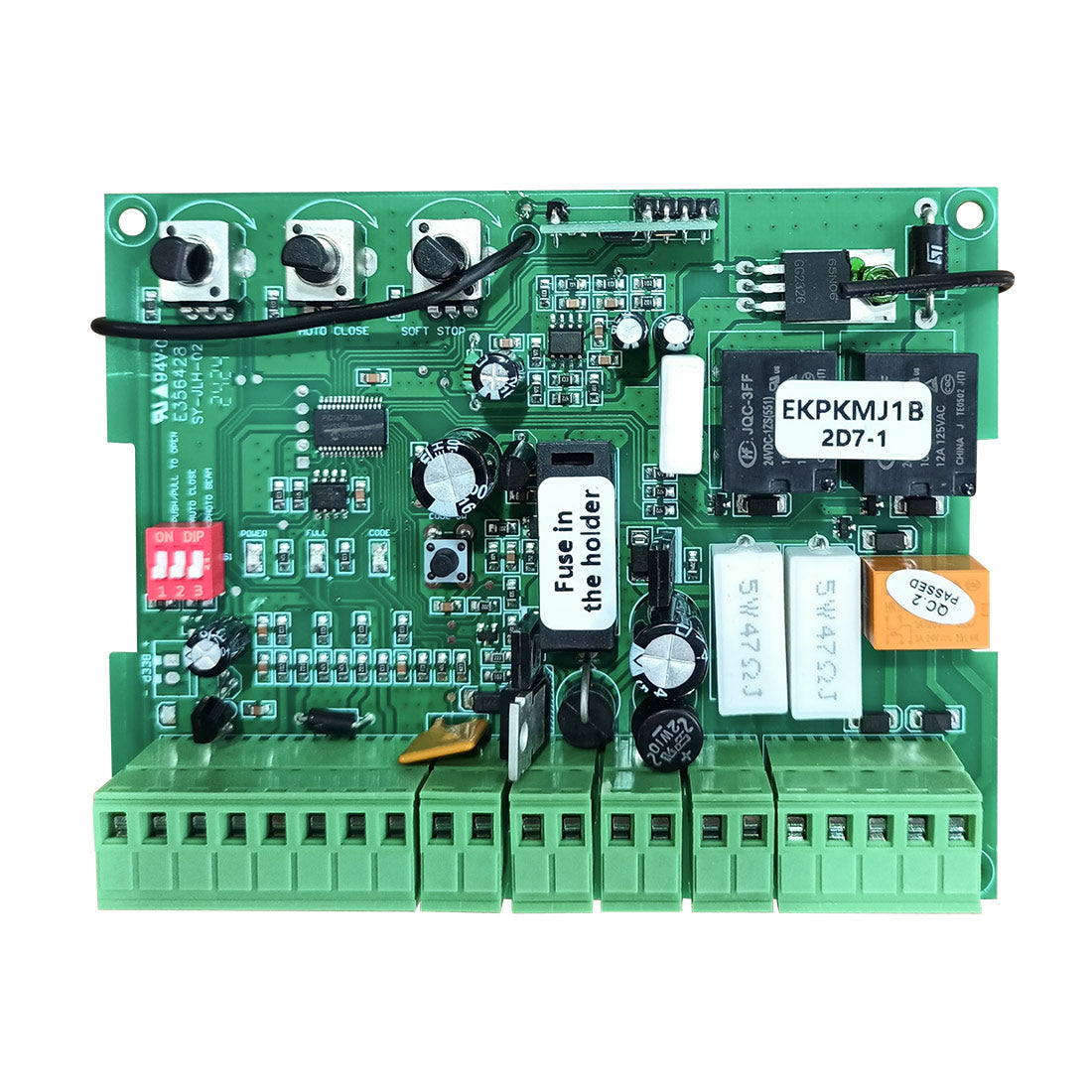
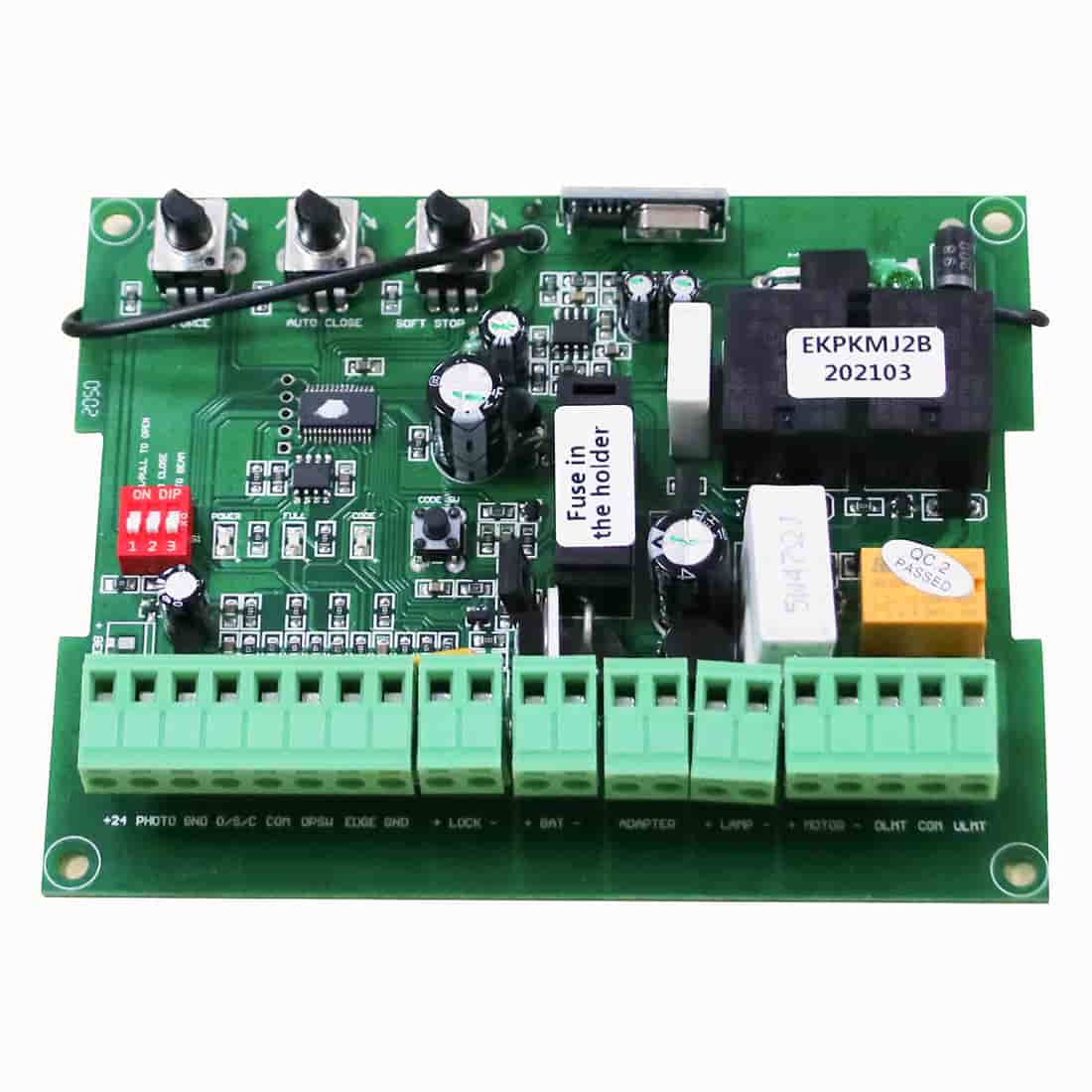
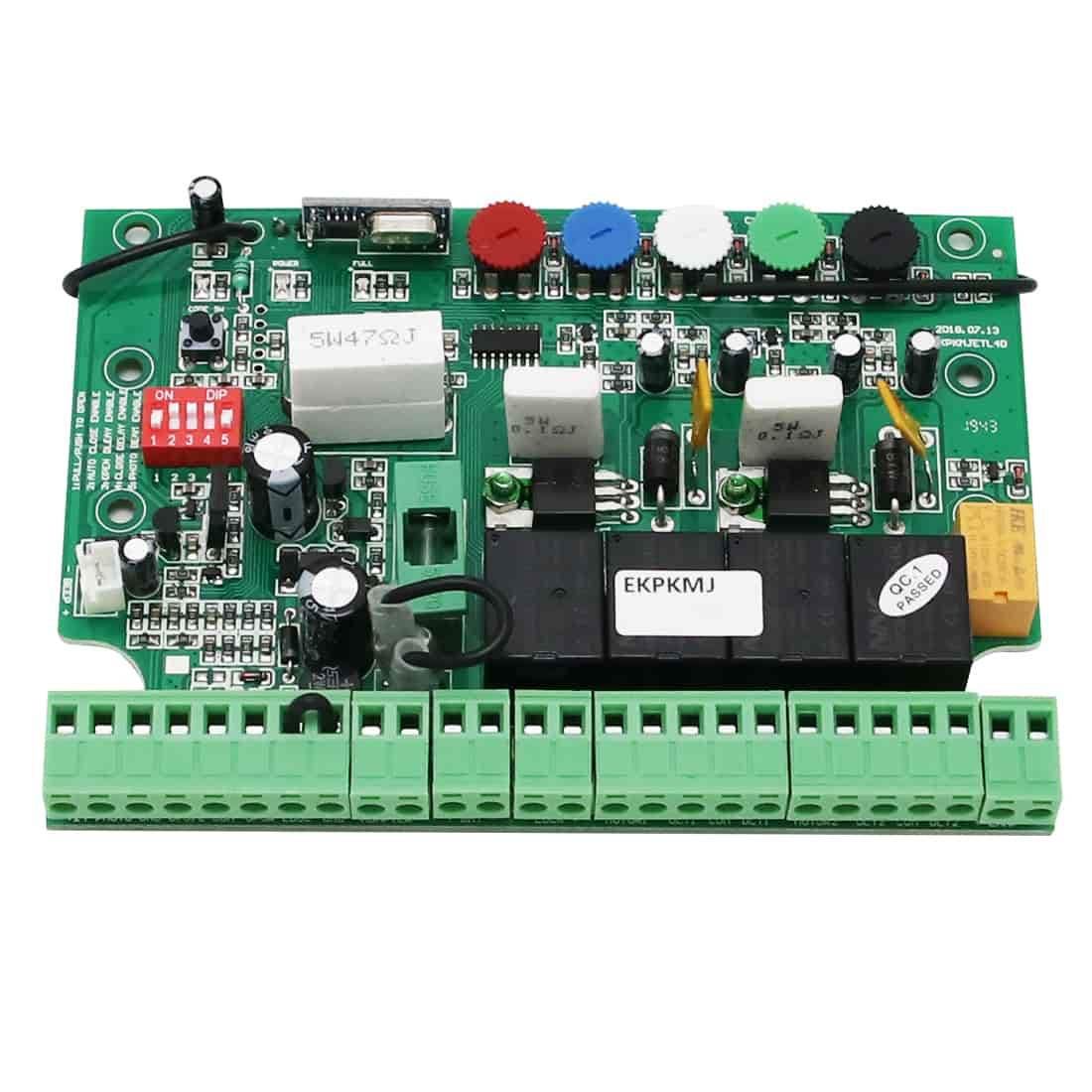
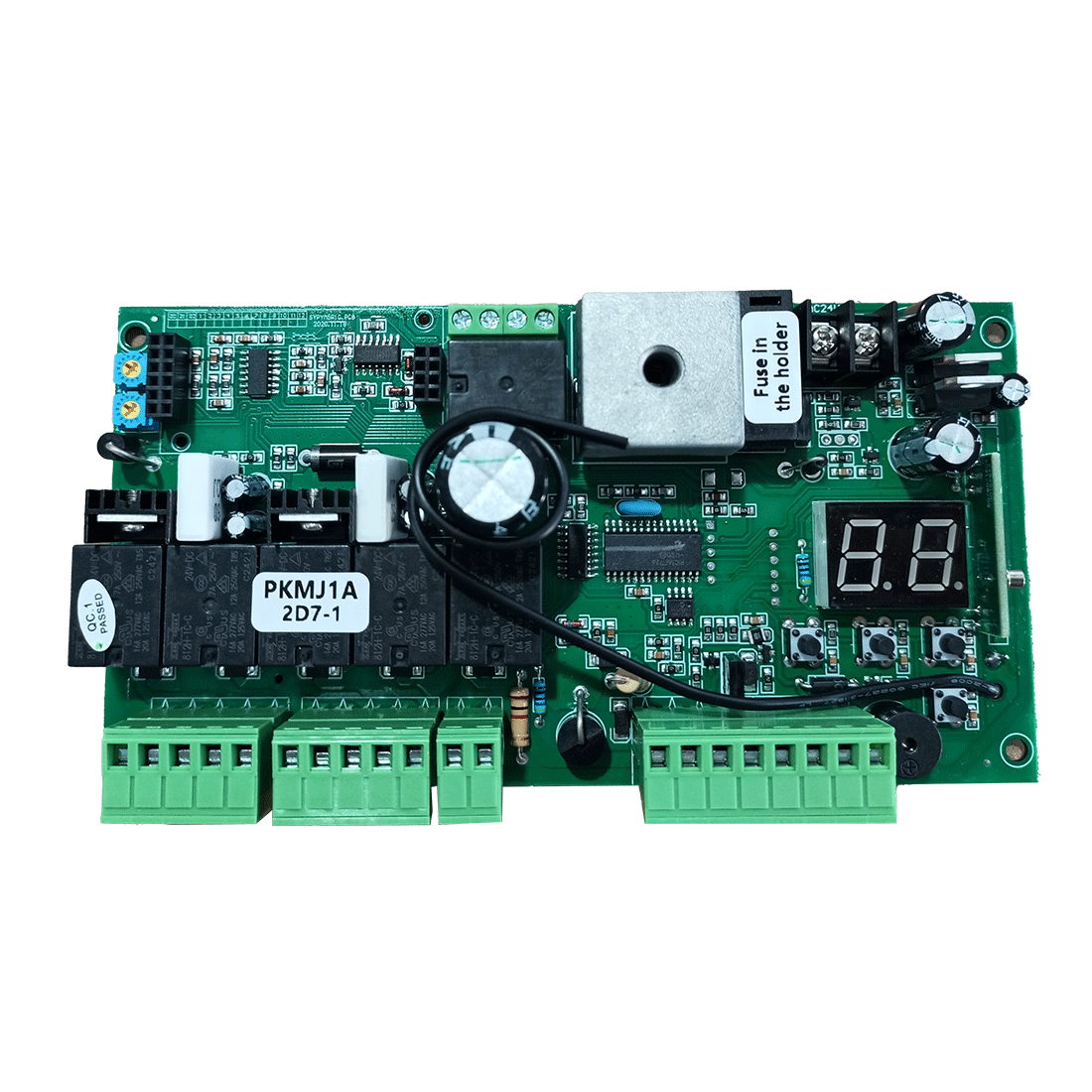
(1) Press and release the remote control programming button (such as CODE SW, LNSW, LEARN, etc.) on the control board of your gate or door opener. The CODE LED (or REM LED, LEARN LED, etc.) will turn on, or the LCD will display the programming mode.
(2) On the main control interface of the Tuya Smart app, press the A, B, C or D button once, then press the same button again after the red indicator light on the WiFi remote control turns off.
(3) The CODE LED on the control board will flash for approximately 3 seconds and then turn off, or the LCD will return to standby mode, indicating that programming was successful.
IMPORTANT: During programming, press button A (B, C, or D) for the first time within 3 seconds after pressing the remote control programming button, then press it again after the red indicator light on the TC196 turns off. The entire programming process must be completed within 8 seconds. If the interval is too long, the opener will exit the programming mode.
Step 3: Try a Different Button
- If Button A fails to program with a swing gate opener, try Button B, C, or D.
Step 4: Restart and Retry
- Restart the TC196, WiFi router, and Tuya Smart app.
- Reinstall the app or test with another smartphone if necessary.
3. TC196 Is Paired but Works Intermittently
If the device appears online but operates inconsistently:
Step 1: Check WiFi Status
- Confirm that the TC196 shows “Online” in the Tuya Smart app.
- Ensure stable power to both the router and TC196.
- Test the WiFi signal strength at the installation location.
- Check router logs for frequent disconnections (if available).
Unstable internet connectivity often causes delayed or failed gate responses.
Step 2: Verify Gate System Operation
- Test the gate using other remotes or wireless control devices.
- If they also fail to operate the gate, the issue may be with the gate opener itself.
Step 3: Check the Red Indicator Light
- Press the programmed button in the app.
- If the red indicator on the TC196 lights up, the phone and TC196 are communicating properly. In this case, the issue is likely between the TC196 and the gate opener control board. Reprogram the TC196 to the opener.
Step 4: Inspect for Signal Interference
- Avoid installing the TC196:
- Inside metal control boxes
- Near large metal objects
- Behind thick concrete walls
- Close to high-power electrical equipment
Metal structures can significantly reduce signal strength.
Step 5: Improve Signal Performance
- Install the TC196 as close to the gate opener control box as possible while maintaining strong WiFi.
- Pull the antenna outside the control box if possible.
- Place a small piece of iron sheet under the TC196 antenna to improve signal reflection.
IMPORTANT: Ensure that the iron sheet does not come into direct contact with the circuit board or other components. Cover the back side of the iron sheet with electrical tape to prevent short circuits.

Step 6: Upgrade to a High-Gain Antenna
If signal performance remains weak:
- Replace the original antenna with a compatible high-gain external antenna (433.92 MHz) with an SMA connector.
(1) Unscrew the original black antenna and screw on the new one.
(2) Route the new antenna out through the right side of the enclosure. Ensure that the antenna does not touch the electronic components on the left side.
(3) If necessary, enlarge the cable exit hole by removing the cable grommet.

4. Remote Control Operating Distance Is Short
If the TC196 works but the operating range is limited:
Step 1: Confirm Communication
- Press the programmed button in the app.
- If the red indicator on the TC196 lights up, the phone and TC196 are connected, but the signal transmission may be weak.
Step 2: Reduce Interference
- Do not install the TC196 or the control board inside metal boxes.
- Ensure no metal objects, walls, or high-power electrical devices are blocking the signal.
- Move the TC196 closer to the control board while maintaining strong WiFi.
Step 3: Improve Signal Strength
- Pull the antenna out of the gate opener’s control box.
- Use the insulated iron sheet method described above.
- Upgrade to a high-gain external antenna if necessary.
When to Contact Support
If the issue persists after completing all troubleshooting steps, contact TOPENS Technical Support at support@topens.com and provide:
- Clear installation photos
- Distance between the router and TC196
- Distance between the TC196 and the control board
- A detailed description of the issue
- Confirmation of the troubleshooting steps already completed
Providing this information will allow for faster and more accurate assistance.